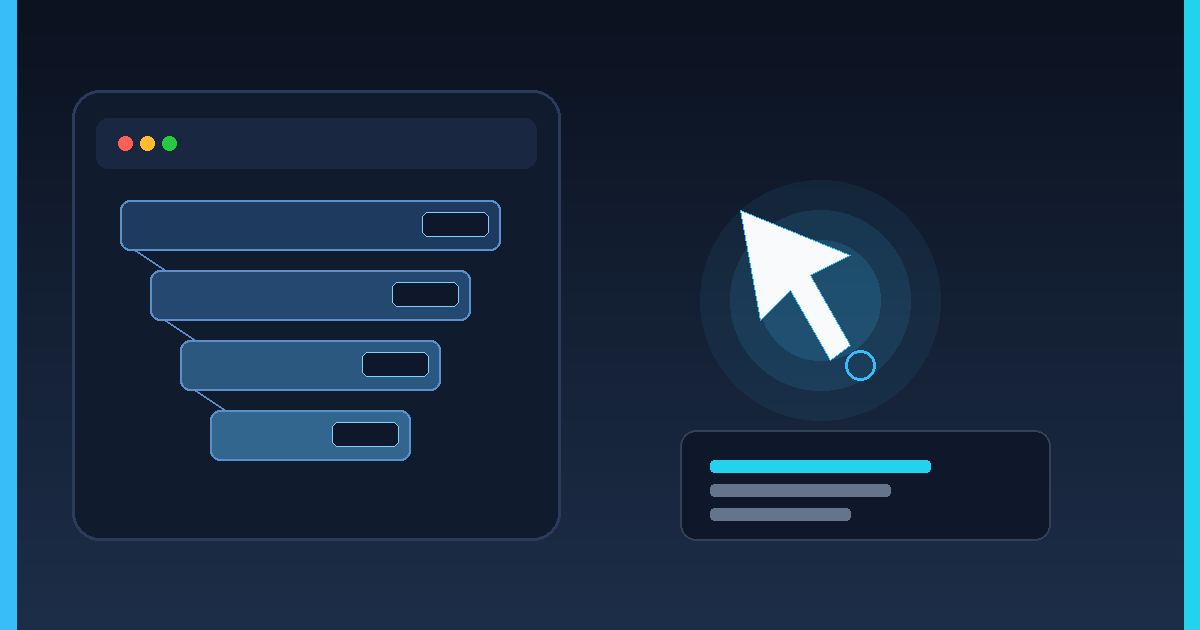
Takeaway: Vercel agent-desktop is an open-source Rust CLI and C library from Vercel Labs that gives coding agents desktop computer-use by reading OS accessibility trees — not by guessing from screenshots. Chris Tate (@ctatedev) framed the Oct 31, 2026 launch as “agent-browser, for your whole computer.” Built by Mohamed Lahfir (@mdlahfir), who joined Vercel Labs, it ships under Apache 2.0 and works with any agent that can run shell commands (Claude Code, Codex, and similar).
Primary sources for this guide: the vercel-labs/agent-desktop repository and the docs at agent-browser.dev/desktop. This post is a practical explainer for developers wiring agents to real desktop apps — not a pixel computer-use model tutorial.
What Vercel agent-desktop actually is
agent-desktop is a tool agents call, not an agent itself. There is no LLM inside, no GUI, and no interactive prompt. Every command prints one JSON envelope and exits. The observe → act → verify loop stays in your harness or script.
It reads a desktop app’s accessibility tree and returns structured JSON. Every element the agent can act on gets a ref qualified with its snapshot id (for example @s8f3k2p9:e8). The agent acts on that ref, snapshots again to check the result, and repeats. Refs are tied to the snapshot that produced them; bare refs like @e8 are rejected with INVALID_ARGS.
- Platforms: macOS 13+ (AX API + Accessibility permission), Windows 10 1809+ / Server 2019+ (UI Automation), Linux Ubuntu 24.04+ with AT-SPI (glibc 2.35+). npm ships x64 and ARM64 binaries.
- Install:
npm install -g agent-desktop, thenagent-desktop versionandagent-desktop status. - Surface: ~60 command names / ~56 operational commands covering observe, click/type, windows, notifications, clipboard, sessions, and more. Four held-input commands (
key-down/key-up/mouse-down/mouse-up) fail closed until a daemon can release a held key or button. - Not for web pages: use agent-browser for the browser. agent-desktop cannot see apps that publish no accessibility tree.
Why accessibility trees beat screenshot computer-use for agents
Screenshot-based computer-use asks a vision model to locate buttons from pixels. That path is flexible, but it burns tokens, drifts when themes or DPI change, and makes safe retries hard — you never know whether a click already landed.
An agent-desktop accessibility tree snapshot returns roles, names, values, and actionable refs. Ref actions go through the OS accessibility API by default (headless): no focus steal and no physical pointer move unless you pass --headed. Multi-agent sessions can show colored cursors so parallel workers stay visible.
| Dimension | Accessibility-tree (agent-desktop) | Screenshot / vision computer-use |
|---|---|---|
| What the agent sees | Structured UI tree + refs from OS a11y APIs | Pixels / screenshots interpreted by a model |
| Targeting | Stable snapshot-qualified refs; re-resolve against live UI | Coordinate or visual match guesses |
| Retry safety | Errors carry delivery/retry disposition; STALE_REF / AMBIGUOUS_TARGET force a fresh snapshot | Hard to know if input already delivered |
| Default interaction | Headless semantic API (no focus steal); optional –headed physical input | Usually moves cursor / focuses UI |
| Blind spots | Cannot see UIs with no a11y tree; not for raw web pages | Can “see” anything on screen, including unlabeled chrome |
| Best fit | IDEs, native apps, Electron shells with a11y; coding-agent loops | Open-ended GUIs, custom-drawn canvases, a11y-poor apps |
The observe → act → verify loop
Docs show the same four-step pattern on every OS. A trimmed Finder / Calculator style flow looks like this:
agent-desktop snapshot --app Finder -i— map interactive elements; each gets a ref.agent-desktop click @s8f3k2p9:e8— act only with a ref from that snapshot.agent-desktop snapshot --app Finder -i(orwait/get) — verify the UI actually changed.- On dense apps: start with
snapshot --skeleton -i --compact, thensnapshot --root @…:eN -i --compactto drill one region.
When the UI changes, an old ref returns STALE_REF or AMBIGUOUS_TARGET. Take a new snapshot and use the new refs. Successful delivery does not prove the app effect happened — always read back.
Install, skills, and wiring Claude Code or Codex
Install globally, grant permissions, then load the embedded skill that matches the binary version:
npm install -g agent-desktop- macOS:
agent-desktop permissions --guidefor Accessibility. Windows needs no grant for same-integrity apps. Linux needs a graphical session with an AT-SPI bus. agent-desktop skills get desktopandagent-desktop skills get platformbefore the first action.- Or install into a harness:
npx skills add https://github.com/vercel-labs/agent-desktop --skill agent-desktop(see skills.sh). Prefer the CLI skill command so docs stay version-matched. - Optional AGENTS.md line: tell the agent to run those skills before first use.
Because there is no model inside, usage limits on Claude Code, Codex, or other hosts stay whatever your provider already bills — agent-desktop only adds shell/FFI calls. For how OpenAI is reshaping ChatGPT + Codex shared usage, see our December 2026 shared usage limits explainer.
Timeline: Linux 1.0, 1.0.2, and the Oct 31 announce
Project changelog notes: 1.0.0 (2026-10-27) added Linux (CLI, C library, npm) via AT-SPI; 1.0.1 the same day cleaned skills/version publishing; 1.0.2 (~2026-10-30) tightened npm launcher notices and macOS permission guidance. Chris Tate’s public announce on Oct 31 put the “whole computer” framing in front of coding-agent users. Docs at agent-browser.dev/desktop were updated through late October.
Privacy, Electron, and JEV
Snapshots, screenshots, clipboard reads, and debug artifacts can contain private desktop content — keep them out of public logs and uploads. For Chromium/Electron web contents, agent-desktop can open a DevTools port that agent-browser connects to; the desktop a11y tree still owns native chrome.
An optional JEV helper (jev-desktop skill) can send screen descriptions to a configured model provider. It is separate from the native CLI and needs its own setup/API key — mention it only when you intentionally want vision-style narration on top of structured refs.
How this fits the broader agent stack
Desktop computer-use sits beside open coding agents and platform connectors. Compare the tool-not-agent shape with DeepSeek’s open-source super-agent prototype, Google’s Connected Apps platform for AI Mode & Gemini, and evaluation pressure around Gemini 4 Carbon benchmarks. If you publish agent tooling docs, keep FAQ and how-to blocks machine-readable — our schema markup for AI search guide covers FAQPage patterns.
Developer checklist: ship a safe desktop loop
- Confirm platform readiness with
agent-desktop status(permissions + supported_surfaces). - Load skills (
desktop+platform) before the first click. - Prefer headless refs; enable
--headedonly when physical input is required. - Always qualify refs as
@<snapshot_id>:eN; never reuse after STALE_REF / AMBIGUOUS_TARGET. - Verify after act with snapshot, wait, get, or is — do not trust delivery alone.
- Use sessions when multiple agents share a machine; assign agent ids for multi-agent cursors.
- Keep private data out of public logs (snapshots, clipboard, screenshots).
- Pair with agent-browser for web pages; do not force agent-desktop onto sites.
- Treat a11y-poor apps as out of scope — pixel computer-use or human handoff may still be needed.
FAQ: Vercel agent-desktop and accessibility-tree computer use
Is Vercel agent-desktop an AI agent?
No. It is a CLI and C library that agents call. There is no embedded LLM, GUI, or interactive prompt. Your coding agent (Claude Code, Codex, etc.) owns the planning loop.
How does agent-desktop accessibility tree targeting work?
A snapshot reads the OS accessibility tree (AX API, UI Automation, or AT-SPI) and assigns snapshot-qualified refs to actionable elements. Commands re-resolve those refs against the live UI. If the tree changed, you get STALE_REF or AMBIGUOUS_TARGET and must snapshot again.
Does agent-desktop automate websites?
No. Use agent-browser for web pages. For Chromium or Electron apps you launch, agent-desktop can open a DevTools port that agent-browser connects to for web contents, while native chrome stays on the a11y path.
What platforms and install command should I use?
macOS 13+, Windows 10 1809+ / Server 2019+, and Linux Ubuntu 24.04+ (glibc 2.35+) with AT-SPI. Install with npm install -g agent-desktop (x64/ARM64 binaries). Grant Accessibility on macOS via agent-desktop permissions --guide.
Headless vs –headed — which should agents default to?
Default is headless: ref actions go through the accessibility API without moving the pointer or stealing focus. Pass --headed only when you need physical input. Multi-agent sessions can use colored cursors so parallel workers stay visible.
What about privacy and the optional JEV helper?
Snapshots, screenshots, clipboard, and debug output can contain private data — do not put them in public logs. The optional JEV helper sends screen descriptions to a configured model provider and is separate from the native CLI.
Bottom line: Vercel agent-desktop turns desktop computer use into a structured, retry-aware CLI contract for coding agents. Prefer accessibility-tree refs over screenshot guessing when apps expose a11y; keep web automation on agent-browser; verify every act; and treat private desktop payloads as sensitive. Star the GitHub repo, read the desktop docs, and load agent-desktop skills get desktop before your first production loop.
Leave a Reply
You must be logged in to post a comment.