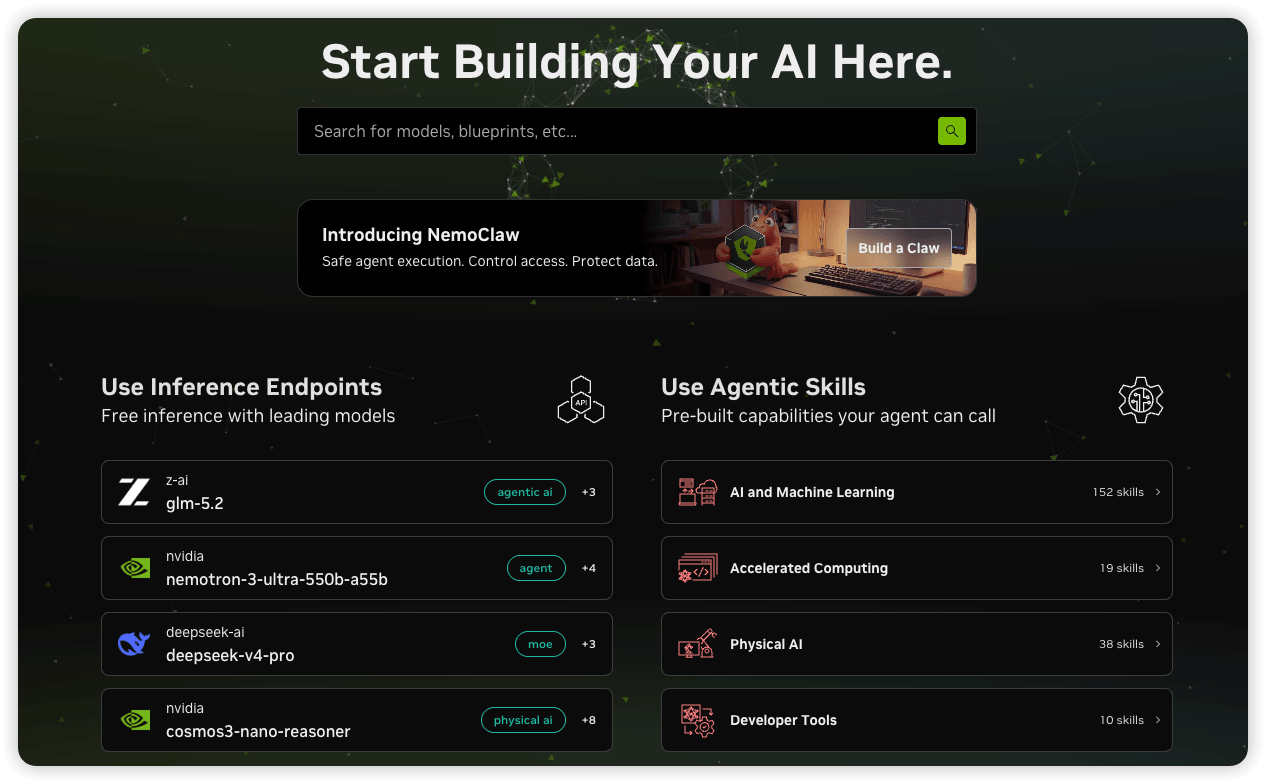
Verification date: July 11, 2026. The NVIDIA Build interface, API key application process, endpoint availability, and official documentation referenced in this article were checked on this date. NVIDIA may update model availability, account requirements, rate limits, and free-access policies at any time.
NVIDIA is best known for GPUs, but the company also provides developers with hosted AI inference APIs through NVIDIA NIM and the NVIDIA Build platform.
By joining the free NVIDIA Developer Program, you can generate an NVIDIA API key and use eligible hosted NIM endpoints for AI development, experimentation, testing, and prototyping. You do not need to own an NVIDIA GPU or deploy a large language model on your own server to get started.
This guide explains how to create an NVIDIA account, generate a free NVIDIA AI API key, select an available model, test the key with cURL, and connect NVIDIA NIM to Python, Node.js, PHP, and OpenAI-compatible applications.
Important: NVIDIA describes these hosted APIs as free serverless APIs for development and as free NIM API access for prototyping. Free access should not be interpreted as a permanent, unlimited, production-grade service-level agreement.
What Is an NVIDIA AI API Key?
An NVIDIA AI API key is a credential used to authenticate requests sent to supported NVIDIA-hosted AI endpoints.
A generated key normally begins with the following prefix:
nvapi-xxxxxxxxxxxxxxxxxxxxxxxxxxxxxxxxThe key is sent in the HTTP Authorization header:
Authorization: Bearer nvapi-xxxxxxxxxxxxxxxxxxxxxxxxxxxxxxxxMany NVIDIA-hosted large language model endpoints use an API structure compatible with the OpenAI Chat Completions format. This means an application that already supports a custom OpenAI-compatible provider can often connect to NVIDIA by changing three values:
- The API base URL
- The API key
- The model identifier
What Is NVIDIA NIM?
NVIDIA NIM, or NVIDIA Inference Microservices, is a collection of optimized inference services designed to simplify the deployment and use of AI models.
Instead of manually downloading model weights, configuring CUDA libraries, selecting an inference engine, and maintaining a GPU server, developers can use a standardized API to send prompts and receive model responses.
Depending on the model and licensing conditions, NIM can be used through:
- NVIDIA-hosted serverless API endpoints
- Downloadable NIM containers
- Cloud GPU infrastructure
- Private data centers
- NVIDIA RTX workstations
- Enterprise AI infrastructure
For this tutorial, we are using the NVIDIA-hosted development endpoints available through NVIDIA Build.
What Can You Build with a Free NVIDIA AI API Key?
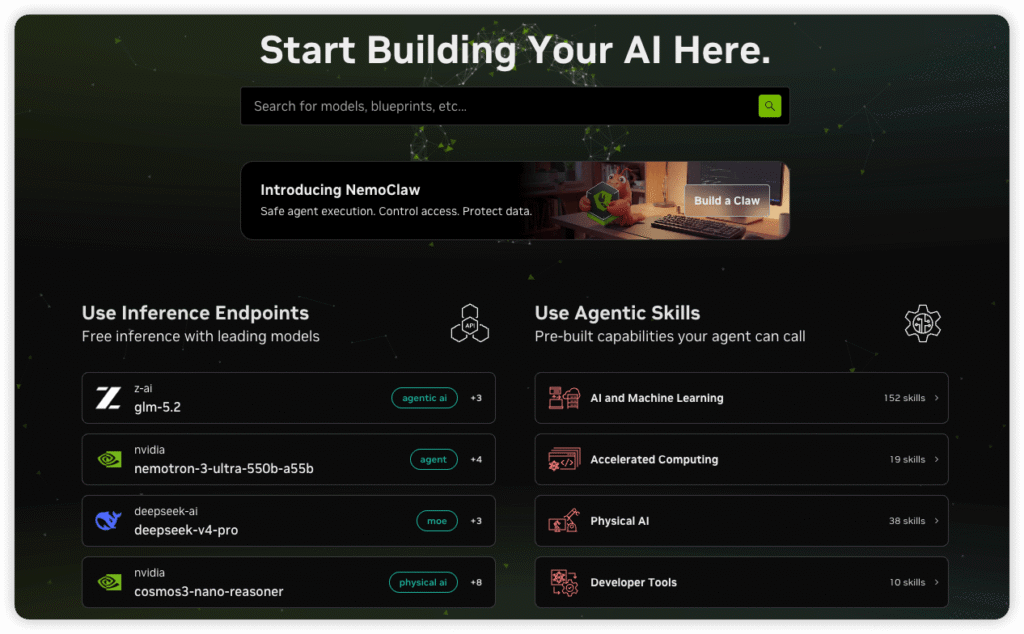
The NVIDIA API catalog includes multiple categories of AI models and services. The exact selection changes over time, but available categories may include:
- Text generation and conversational AI
- Reasoning models
- Code generation and code analysis
- Vision-language models
- Image and visual-content processing
- Embedding models
- Reranking models
- Speech and audio processing
- Safety and moderation models
- Biology, chemistry, climate, and scientific AI models
Typical development projects include:
- AI chatbots
- Customer-support assistants
- Retrieval-augmented generation systems
- Document summarization tools
- Code assistants
- WordPress AI plugins
- Laravel or Node.js AI applications
- Semantic search engines
- Internal knowledge-base assistants
- AI agent prototypes
Requirements
To apply for an NVIDIA API key, you generally need:
- A working email address
- An NVIDIA account
- Membership in the NVIDIA Developer Program
- A modern web browser
- Acceptance of the applicable NVIDIA terms
Account-verification requirements can vary by region, account status, and NVIDIA’s current fraud-prevention policies. Follow the instructions displayed during registration.
Step 1: Open NVIDIA Build
Open the official NVIDIA Build website:
NVIDIA Build is the official catalog for exploring hosted AI endpoints, NIM models, blueprints, code samples, and related AI development resources.
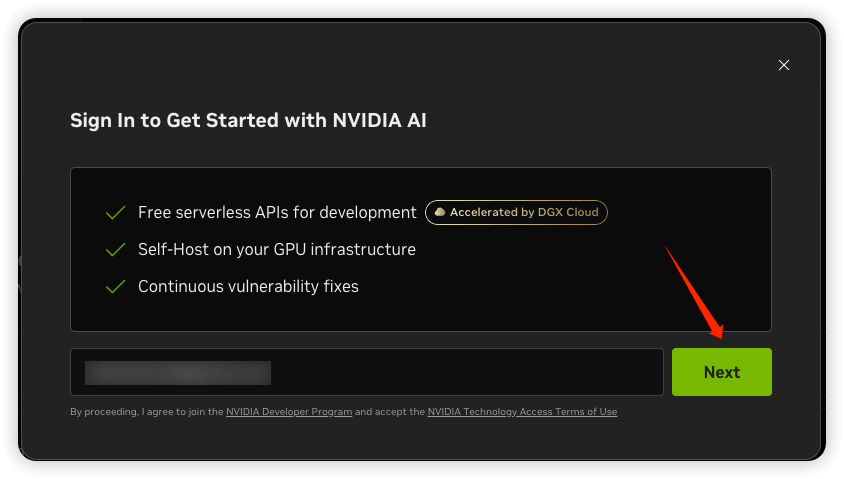
Step 2: Create or Sign In to Your NVIDIA Account
Click Sign In.
If you already have an NVIDIA account, enter your email address and continue with the login process.
If you do not have an account, enter your email address and complete the registration process. Depending on NVIDIA’s current interface, you may be asked to:
- Enter your email address.
- Verify your email.
The NVIDIA API key sign-in page currently states that users receive access to free serverless APIs for development and that proceeding joins the user to the NVIDIA Developer Program.
Step 3: Open the NVIDIA API Key Settings Page
After signing in, You can normally create an API key in one of two ways:
- Open the API Keys settings page and generate a key.
- Open an eligible model and click Get API Key.
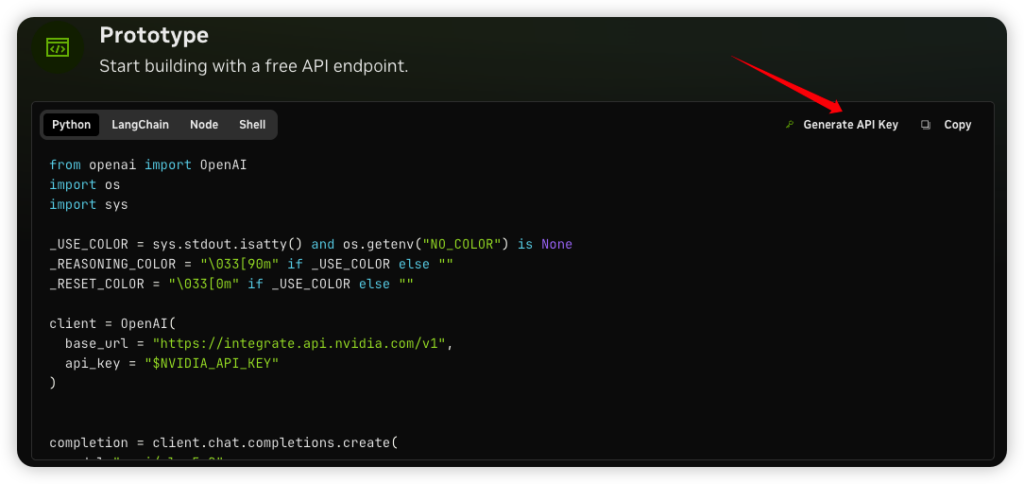
Both methods authenticate your requests against supported NVIDIA-hosted services.
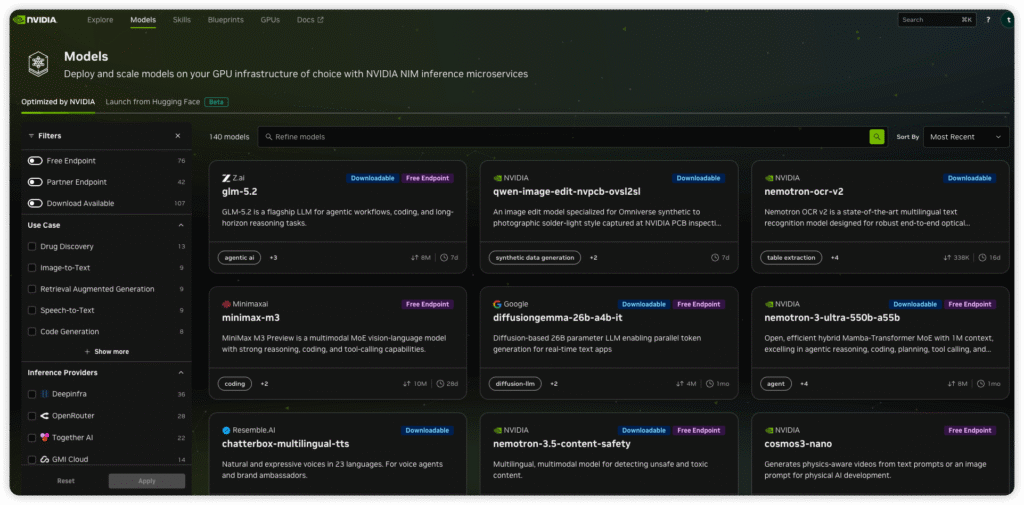
Step 4: Browse the NVIDIA Model Catalog
Open the model catalog:
https://build.nvidia.com/models
You can also browse the discovery interface:
https://build.nvidia.com/explore/discover
Search for a model that provides a hosted endpoint. NVIDIA may display labels such as:
- Free Endpoint
- Downloadable
- Deprecated
- Partner Endpoint
- Preview
| Label | Meaning |
|---|---|
| Free Endpoint | A hosted endpoint is available for eligible development or prototyping use. |
| Downloadable | The model or NIM can be deployed on supported infrastructure. This does not automatically mean a hosted endpoint is available. |
| Partner Endpoint | The endpoint may be operated or delivered through an NVIDIA partner. |
| Deprecated | The endpoint has been retired or is scheduled for removal. |
| Preview | The service is intended for evaluation and may change without production-level guarantees. |
Do not assume that every model shown in the catalog can be called for free. Always open the individual model page and confirm its current endpoint status.
Step 5: Open a Model and Review Its API Example
Click an available model. A model page may contain:
- An interactive prompt area
- A model card
- API documentation
- Python examples
- Node.js examples
- Shell or cURL examples
- LangChain examples
- The exact API model identifier
- A Get API Key button
The model identifier is especially important. It may look similar to:
publisher/model-nameAlways copy the identifier directly from the current model page. Do not rely on an old tutorial, video, or cached model list because NVIDIA can rename, replace, update, or deprecate endpoints.
Step 6: Generate the NVIDIA API Key
Click Get API Key, Generate API Key, or the equivalent button shown in your account.
If NVIDIA asks for a key name, use a descriptive name that identifies the project or environment:
wordpress-ai-development
laravel-rag-test
node-chatbot-production
local-python-demo
Avoid using generic names such as test for every key. Descriptive names make it easier to revoke a compromised key without affecting unrelated applications.
If the interface provides an expiration option, select an appropriate validity period based on the project. A shorter expiration period reduces the risk of abandoned credentials remaining active.
Step 7: Copy and Secure the Key
After the key is generated, copy it immediately and store it securely.
nvapi-xxxxxxxxxxxxxxxxxxxxxxxxxxxxxxxxDo not place the real key in:
- Public GitHub repositories
- Browser-side JavaScript
- Public WordPress source code
- Blog screenshots
- Forum posts
- Application error messages
- Publicly accessible log files
- Unencrypted configuration files
On Linux or macOS, store the key in an environment variable:
export NVIDIA_API_KEY="nvapi-replace-with-your-real-key"On Windows PowerShell:
$env:NVIDIA_API_KEY="nvapi-replace-with-your-real-key"For a project that uses a .env file:
NVIDIA_API_KEY=nvapi-replace-with-your-real-keyAdd the file to .gitignore:
.env
.env.*
!.env.example
Step 8: Test the NVIDIA API Key with cURL
Testing with cURL is the fastest way to confirm that the account, key, endpoint, and model identifier are working before integrating the API into an application.
For OpenAI-compatible NVIDIA-hosted LLM endpoints, the commonly used base URL is:
https://integrate.api.nvidia.com/v1The Chat Completions endpoint is:
https://integrate.api.nvidia.com/v1/chat/completionsFirst, export the key:
export NVIDIA_API_KEY="nvapi-replace-with-your-real-key"Then send a test request:
curl --request POST \
  --url https://integrate.api.nvidia.com/v1/chat/completions \
  --header "Authorization: Bearer ${NVIDIA_API_KEY}" \
  --header "Content-Type: application/json" \
  --data '{
    "model": "REPLACE_WITH_THE_CURRENT_MODEL_ID",
    "messages": [
      {
        "role": "system",
        "content": "You are a precise technical assistant."
      },
      {
        "role": "user",
        "content": "Explain NVIDIA NIM in three short paragraphs."
      }
    ],
    "temperature": 0.2,
    "max_tokens": 500,
    "stream": false
  }'
Replace the following value with the exact model ID displayed on the NVIDIA model page:
REPLACE_WITH_THE_CURRENT_MODEL_IDA successful response should contain a JSON object with fields similar to:
{
  "id": "chatcmpl-example",
  "object": "chat.completion",
  "choices": [
    {
      "index": 0,
      "message": {
        "role": "assistant",
        "content": "NVIDIA NIM is..."
      },
      "finish_reason": "stop"
    }
  ],
  "usage": {
    "prompt_tokens": 28,
    "completion_tokens": 120,
    "total_tokens": 148
  }
}
Enable Streaming Output
To receive output incrementally, change:
"stream": falseto:
"stream": trueUse curl -N to disable output buffering:
curl -N https://integrate.api.nvidia.com/v1/chat/completions \
  -H "Authorization: Bearer ${NVIDIA_API_KEY}" \
  -H "Content-Type: application/json" \
  -d '{
    "model": "REPLACE_WITH_THE_CURRENT_MODEL_ID",
    "messages": [
      {
        "role": "user",
        "content": "Write a short introduction to retrieval-augmented generation."
      }
    ],
    "temperature": 0.3,
    "max_tokens": 500,
    "stream": true
  }'
Use the NVIDIA API with Python
Because supported NVIDIA LLM endpoints are OpenAI-compatible, you can use the official OpenAI Python client with a custom base URL.
1. Install the Python Package
python3 -m pip install --upgrade openai2. Create the Python Script
import os
import sys

from openai import OpenAI


def main() -> None:
    api_key = os.getenv("NVIDIA_API_KEY")

    if not api_key:
        print(
            "Error: NVIDIA_API_KEY is not configured.",
            file=sys.stderr,
        )
        sys.exit(1)

    client = OpenAI(
        api_key=api_key,
        base_url="https://integrate.api.nvidia.com/v1",
        timeout=60.0,
        max_retries=2,
    )

    try:
        response = client.chat.completions.create(
            model="REPLACE_WITH_THE_CURRENT_MODEL_ID",
            messages=[
                {
                    "role": "system",
                    "content": (
                        "You are a precise technical writing assistant."
                    ),
                },
                {
                    "role": "user",
                    "content": (
                        "Explain the difference between an API "
                        "and an SDK."
                    ),
                },
            ],
            temperature=0.2,
            max_tokens=500,
        )

        content = response.choices[0].message.content
        print(content)

    except Exception as error:
        print(
            f"NVIDIA API request failed: {error}",
            file=sys.stderr,
        )
        sys.exit(1)


if __name__ == "__main__":
    main()
Run the script:
python3 nvidia_api_test.pyPython Streaming Example
import os
import sys

from openai import OpenAI


api_key = os.getenv("NVIDIA_API_KEY")

if not api_key:
    print(
        "Error: NVIDIA_API_KEY is not configured.",
        file=sys.stderr,
    )
    sys.exit(1)

client = OpenAI(
    api_key=api_key,
    base_url="https://integrate.api.nvidia.com/v1",
)

stream = client.chat.completions.create(
    model="REPLACE_WITH_THE_CURRENT_MODEL_ID",
    messages=[
        {
            "role": "user",
            "content": (
                "Write a practical introduction to Docker Compose."
            ),
        }
    ],
    temperature=0.3,
    max_tokens=800,
    stream=True,
)

for chunk in stream:
    content = chunk.choices[0].delta.content

    if content:
        print(content, end="", flush=True)

print()
Use the NVIDIA API with Node.js
1. Create a Node.js Project
mkdir nvidia-api-demo
cd nvidia-api-demo
npm init -y
npm install openai dotenv
2. Create the .env File
NVIDIA_API_KEY=nvapi-replace-with-your-real-key3. Create index.mjs
import "dotenv/config";
import OpenAI from "openai";

const apiKey = process.env.NVIDIA_API_KEY;

if (!apiKey) {
    console.error(
        "Error: NVIDIA_API_KEY is not configured."
    );
    process.exit(1);
}

const client = new OpenAI({
    apiKey,
    baseURL: "https://integrate.api.nvidia.com/v1",
    timeout: 60_000,
    maxRetries: 2,
});

try {
    const response = await client.chat.completions.create({
        model: "REPLACE_WITH_THE_CURRENT_MODEL_ID",
        messages: [
            {
                role: "system",
                content: (
                    "You are a professional software " +
                    "engineering assistant."
                ),
            },
            {
                role: "user",
                content: (
                    "Provide five practical Nginx " +
                    "security recommendations."
                ),
            },
        ],
        temperature: 0.2,
        max_tokens: 600,
    });

    console.log(
        response.choices[0].message.content
    );
} catch (error) {
    console.error(
        "NVIDIA API request failed:",
        error?.message ?? error
    );
    process.exit(1);
}
Run the application:
node index.mjsUse the NVIDIA API with PHP
The following example can be adapted for WordPress, Laravel, or a traditional PHP application.
<?php

declare(strict_types=1);

$apiKey = getenv('NVIDIA_API_KEY');

if (!$apiKey) {
    throw new RuntimeException(
        'NVIDIA_API_KEY is not configured.'
    );
}

$payload = [
    'model' => 'REPLACE_WITH_THE_CURRENT_MODEL_ID',
    'messages' => [
        [
            'role' => 'system',
            'content' => (
                'You are a professional technical assistant.'
            ),
        ],
        [
            'role' => 'user',
            'content' => (
                'Explain the purpose of a reverse proxy.'
            ),
        ],
    ],
    'temperature' => 0.2,
    'max_tokens' => 500,
    'stream' => false,
];

$json = json_encode(
    $payload,
    JSON_UNESCAPED_UNICODE |
    JSON_UNESCAPED_SLASHES |
    JSON_THROW_ON_ERROR
);

$curl = curl_init(
    'https://integrate.api.nvidia.com/v1/chat/completions'
);

curl_setopt_array($curl, [
    CURLOPT_POST => true,
    CURLOPT_RETURNTRANSFER => true,
    CURLOPT_CONNECTTIMEOUT => 10,
    CURLOPT_TIMEOUT => 60,
    CURLOPT_HTTPHEADER => [
        'Authorization: Bearer ' . $apiKey,
        'Content-Type: application/json',
    ],
    CURLOPT_POSTFIELDS => $json,
]);

$response = curl_exec($curl);

if ($response === false) {
    $error = curl_error($curl);
    curl_close($curl);

    throw new RuntimeException(
        'cURL request failed: ' . $error
    );
}

$statusCode = curl_getinfo(
    $curl,
    CURLINFO_HTTP_CODE
);

curl_close($curl);

if ($statusCode < 200 || $statusCode >= 300) {
    throw new RuntimeException(
        sprintf(
            'NVIDIA API returned HTTP %d: %s',
            $statusCode,
            $response
        )
    );
}

$data = json_decode(
    $response,
    true,
    512,
    JSON_THROW_ON_ERROR
);

echo $data['choices'][0]['message']['content']
    ?? $response;
Never hard-code a production API key directly in a public WordPress plugin or theme file. Use a server-side environment variable or a protected secret-management system.
Connect NVIDIA NIM to an OpenAI-Compatible Application
Many AI clients and frameworks support custom OpenAI-compatible providers. The typical configuration is:
API Base URL:
https://integrate.api.nvidia.com/v1

API Key:
nvapi-xxxxxxxxxxxxxxxxxxxxxxxx

Model:
REPLACE_WITH_THE_CURRENT_MODEL_ID
This can work with compatible chat interfaces, RAG tools, agent frameworks, workflow platforms, and custom applications.
However, compatibility is not guaranteed for every feature. A third-party application may expect:
- A specific response format
- A working
/v1/modelsendpoint - Tool-calling support
- Structured-output support
- A specific multimodal message format
- Parameters that the selected NVIDIA model does not support
Always test the official model-page example first. Once that succeeds, configure the same endpoint, model ID, and parameters in the third-party application.
How to Choose an NVIDIA AI Model
General Chat and Writing
Choose a general instruction-following model for:
- Chatbots
- Article drafting
- Summarization
- Translation
- Customer support
- Information extraction
Reasoning
Choose a reasoning-oriented model for:
- Multi-step analysis
- Mathematics
- Complex coding problems
- Planning
- Agent workflows
Code Generation
Choose a coding model for:
- Generating code
- Debugging
- Refactoring
- Writing tests
- Creating SQL queries
- Explaining source code
Vision
Choose a vision-language model for:
- Image understanding
- Screenshot analysis
- Chart interpretation
- Visual question answering
- OCR post-processing
Embeddings and Reranking
Choose an embedding or reranking model for:
- Semantic search
- RAG pipelines
- Document retrieval
- Similarity matching
- Search-result reranking
Is the NVIDIA API Really Free?
NVIDIA’s official developer page currently describes free access to NIM API endpoints for prototyping, powered by NVIDIA infrastructure. The NVIDIA Build API key page also advertises free serverless APIs for development.
The safest interpretation is:
NVIDIA provides eligible developers with free hosted API access for development, learning, experimentation, testing, and prototyping, subject to current model availability, access policies, rate limits, and applicable terms.
Do not assume that the service includes:
- Unlimited production traffic
- A guaranteed request rate for every model
- A permanent endpoint for every model
- A formal production SLA
- Unlimited tokens or inference credits
- Automatic commercial-production rights for every model
Older NVIDIA forum posts and third-party tutorials may mention fixed credit allocations or a specific request-per-minute value. These figures have changed over time and may not apply uniformly to every model or account in 2026.
A June 2026 NVIDIA forum discussion indicated that free-tier rate limits can depend on the model, use case, and current platform traffic. For this reason, your application should rely on actual HTTP responses and current account information rather than assuming a universal rate limit.
Development Access vs. Production Deployment
| Usage Type | Typical Purpose | Important Consideration |
|---|---|---|
| Hosted free endpoint | Learning, testing, evaluation, and prototyping | Subject to model availability, free-access policies, and rate limits |
| Self-hosted NIM | Private development or controlled infrastructure | You provide the GPU infrastructure and must comply with applicable licensing |
| Enterprise production | Commercial workloads requiring support and production guarantees | May require NVIDIA AI Enterprise licensing and production infrastructure |
Before using an endpoint in a commercial production service, verify:
- The NVIDIA service terms
- The selected model’s license
- Data-processing and privacy requirements
- Production-use restrictions
- Rate limits
- Support availability
- Required enterprise licensing
Common NVIDIA API Errors
401 Unauthorized
A 401 response usually means the API could not authenticate the request.
Check the following:
- The API key was copied correctly.
- The key does not contain leading or trailing spaces.
- The key has not expired.
- The key has not been revoked.
- The request includes the Bearer prefix.
Correct header:
Authorization: Bearer nvapi-xxxxxxxxIncorrect header:
Authorization: nvapi-xxxxxxxx403 Forbidden
Possible causes include:
- The account has not completed verification.
- The selected model is unavailable to the account.
- The endpoint has regional or policy restrictions.
- Updated terms have not been accepted.
- The selected model is not available as a hosted endpoint.
404 Model Not Found
A 404 or model-not-found response can occur when:
- The model ID is misspelled.
- The display name was used instead of the API model ID.
- The model version has changed.
- The endpoint has been deprecated.
- A self-hosted model ID was used with a hosted endpoint.
Return to the current NVIDIA model page and copy its official Shell or Python example.
429 Too Many Requests
A 429 response means the request was rate-limited or the current usage allowance was exceeded.
A production-quality client should implement:
- Exponential backoff
- Random jitter
- Concurrency limits
- Request queues
- Response caching
- Maximum retry counts
- Fallback behavior
Example Python retry logic:
import os
import random
import time

from openai import OpenAI, RateLimitError


client = OpenAI(
    api_key=os.environ["NVIDIA_API_KEY"],
    base_url="https://integrate.api.nvidia.com/v1",
)

for attempt in range(5):
    try:
        response = client.chat.completions.create(
            model="REPLACE_WITH_THE_CURRENT_MODEL_ID",
            messages=[
                {
                    "role": "user",
                    "content": "Hello",
                }
            ],
            max_tokens=100,
        )

        print(response.choices[0].message.content)
        break

    except RateLimitError:
        if attempt == 4:
            raise

        delay = (2 ** attempt) + random.random()
        print(
            f"Rate limited. Retrying in {delay:.1f} seconds."
        )
        time.sleep(delay)
400 Bad Request
A 400 response usually indicates an invalid request. Common causes include:
- Malformed JSON
- An unsupported parameter
- An invalid message structure
- A token limit that is too high
- An invalid temperature value
- An incorrect multimodal input format
Start with the exact example shown on the model’s API page. Modify one parameter at a time after the original example works.
Timeouts
A request may take longer when the model is busy, the prompt is large, the requested output is long, or the selected model performs extensive reasoning.
Configure reasonable connection and response timeouts:
curl \
  --connect-timeout 10 \
  --max-time 120 \
  https://integrate.api.nvidia.com/v1/chat/completions
Do not retry indefinitely. Unlimited retries can increase load and trigger additional rate limiting.
NVIDIA API Key Security Best Practices
Never Expose the Key in Browser JavaScript
This is insecure:
const apiKey = "nvapi-xxxxxxxx";Any visitor can inspect browser source code and network requests.
Use the following architecture instead:
Browser
   |
   v
Your backend API
   |
   v
NVIDIA-hosted API
Use Separate Keys
Create different keys for different projects and environments:
project-development
project-staging
project-production
If one key is compromised, you can revoke it without disrupting every application.
Rotate Keys Regularly
Rotate a key when:
- It appears in a public repository.
- It is exposed in a screenshot.
- An employee or contractor loses access.
- A server may have been compromised.
- The key reaches its planned rotation date.
Protect Your Own API Endpoint
Even when the upstream NVIDIA endpoint is free for development, your backend should enforce:
- Per-user rate limits
- Per-IP rate limits
- Maximum prompt length
- Maximum output length
- Daily usage quotas
- Authentication
- Abuse detection
- Log redaction
- Cost and usage monitoring
Example Nginx rate limit:
limit_req_zone $binary_remote_addr
    zone=ai_api:10m
    rate=5r/s;

server {
    location /api/ai/ {
        limit_req
            zone=ai_api
            burst=10
            nodelay;

        proxy_pass http://127.0.0.1:8000;
        proxy_connect_timeout 10s;
        proxy_send_timeout 30s;
        proxy_read_timeout 120s;
    }
}
Frequently Asked Questions
Do I need an NVIDIA GPU?
No. NVIDIA-hosted endpoints run remotely. Your computer only sends HTTPS requests and receives responses.
Do I need to install CUDA?
No. CUDA is not required when you are calling an NVIDIA-hosted endpoint through its web API.
Is a credit card required?
The NVIDIA Build sign-in page currently advertises free serverless APIs for development. The basic NVIDIA Developer Program registration and hosted development access do not normally require deploying paid cloud GPU infrastructure. Account requirements can change, so follow the current registration interface.
Can one API key call multiple models?
A key can generally authenticate requests to multiple models that the account is authorized to access. However, each model still has its own endpoint status, supported parameters, availability, and usage conditions.
Can I put the API key in a WordPress page?
No. Never expose the key in a page, block, shortcode output, or browser-side JavaScript. Send the request from PHP on the WordPress server.
Can I use the free endpoint in a commercial application?
The free hosted endpoints are primarily described as development and prototyping services. Before launching a commercial production workload, verify the current NVIDIA terms, model license, production-use conditions, privacy requirements, and any NVIDIA AI Enterprise licensing requirements.
Why is a model from an older tutorial no longer available?
NVIDIA regularly changes its model catalog. A model may be renamed, updated, replaced, restricted, or deprecated. Always use the current model catalog rather than copying an old model ID.
Is there a universal requests-per-minute limit?
You should not assume one universal limit. NVIDIA forum guidance published in 2026 indicates that free-tier rate limits can depend on the model, use case, and current platform traffic. Handle HTTP 429 responses and inspect the latest account and model documentation.
Application Checklist
- Open NVIDIA Build.
- Create or sign in to an NVIDIA account.
- Join the NVIDIA Developer Program.
- Open the API key settings page.
- Browse the current NVIDIA model catalog.
- Select a model with an available hosted endpoint.
- Copy the exact model ID from its API example.
- Generate an API key.
- Store the key in a server-side environment variable.
- Test the endpoint with cURL.
- Integrate it with Python, Node.js, PHP, or another compatible client.
- Add authentication, rate limiting, retries, caching, and monitoring.
- Recheck licensing and production requirements before commercial deployment.
Conclusion
NVIDIA Build provides one of the easiest ways to experiment with hosted AI models without purchasing a GPU or deploying an inference server.
The basic workflow is straightforward: create an NVIDIA account, join the Developer Program, choose an eligible model, generate an nvapi- key, and test the API with the example provided on the model page.
The API is especially useful for evaluating models, creating prototypes, building RAG demonstrations, testing AI agents, and adding experimental AI features to Python, Node.js, PHP, Laravel, or WordPress projects.
Remember that model availability and free-access rules can change. Treat the NVIDIA Build interface and official NVIDIA documentation as the authoritative sources, protect the API key on the server, and verify the licensing requirements before moving a prototype into production.
ifying this guide:
- NVIDIA Build: https://build.nvidia.com/
- NVIDIA API Key Settings: https://build.nvidia.com/settings/api-keys
- NVIDIA Model Catalog: https://build.nvidia.com/models
- NVIDIA Model Discovery: https://build.nvidia.com/explore/discover
- NVIDIA NIM for Developers: https://developer.nvidia.com/nim
- NVIDIA NIM API Documentation: https://docs.api.nvidia.com/
- NVIDIA LLM API Overview: https://docs.api.nvidia.com/nim/reference/llm-apis
- NVIDIA Run NIM Anywhere: https://docs.api.nvidia.com/nim/docs/run-anywhere
- NVIDIA NIM FAQ: https://forums.developer.nvidia.com/t/nvidia-nim-faq/300317
- NVIDIA Developer Forum discussion about hosted and production use: https://forums.developer.nvidia.com/t/nim-question/364032
Comments
One response to “How to Get a Free NVIDIA AI API Key in 2026: Step-by-Step NIM API Tutorial”
[…] How to Get a Free NVIDIA AI API Key […]