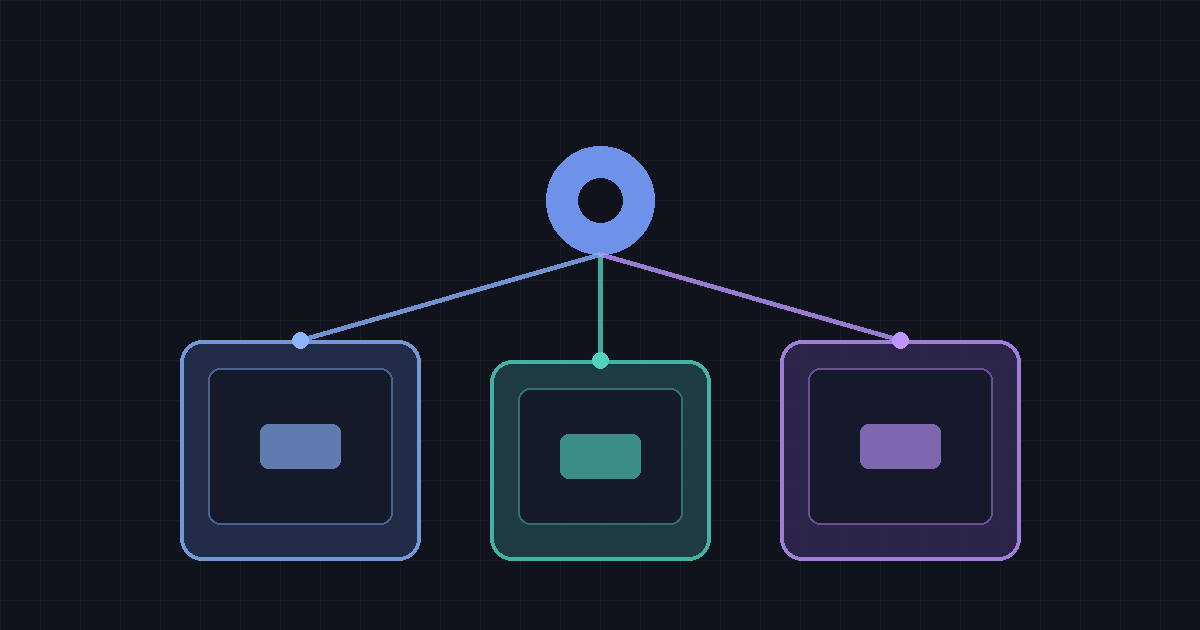
Takeaway: OpenAI now lets one ChatGPT dot connect to more than one of your local computers and choose which machine runs a given task. OpenAI Developers announced the change on November 9, 2026, with a short demo of a dot building and testing an app on a dedicated machine while you keep coding on a laptop. Official ChatGPT documentation on connecting computers and apps now tells you to repeat the Allow-access step on each machine, then ask the dot to start a separate thread on each computer for independent work. Each thread uses one computer at a time; this is not a shared compute cluster. The dot’s cloud computer stays connected. Local access still requires the machine to be online with the ChatGPT desktop app open, and it is separate from connecting a computer to Codex or turning on Work Sync. Availability is limited by plan and region, and rollout for Pro and Business Premium is gradual. We have not independently timed a multi-machine workflow for this article.
Dots already had a place in the always-on agent race this site has been tracking, including Perplexity’s Teammates launch and Apple’s push toward a more agentic Siri. Until this change, a dot could use its own cloud computer and, optionally, one local machine. The new docs close a gap users had been asking about: keeping a laptop for editing while a second Mac or an older test box handles Xcode, an older SDK, or a UI walkthrough. Automattic’s Spacefast launch also lists Dots among the personal assistants it wants to host for, which is a different product story — publishing an app, not steering two of your own computers.
What OpenAI announced
The OpenAI Developers post, published at 8:01 p.m. UTC on November 9, 2026 (12:01 p.m. Pacific), is short and specific:
You can now connect multiple local computers to the same dot and choose which one it uses for a task. It can build and test your app on a dedicated machine while you keep coding on your laptop.
OpenAI Developers, November 9, 2026
The same post offered three examples: asking the dot to test an iOS change in Xcode on a second Mac and send screenshots; running the same test on a laptop and on a machine with an older SDK to reproduce a bug; and having the dot click through a UI on a second computer so your own screen and cursor stay free. Those are company demonstrations, not independent test results.
OpenAI’s “Meet dots” guide now states the same capability in the product documentation: “You can connect more than one computer and tell your dot which one to use for a task.” The computers-and-apps page is the detailed how-to. A matching OpenAI Help Center article still describes local access as optional and off by default, and it explains how to allow or revoke a computer, but the November 9 developer post is the public notice that more than one local machine can be attached to the same dot at once.
How to connect a second computer
The setup is the same on every machine, and it has to be done in the ChatGPT desktop app on that computer. Per the official computers-and-apps guide:
- Open your dot’s profile in the ChatGPT app on the computer you want to connect.
- Under Computers, find the computer you’re using and select Allow.
- Review the confirmation and select Allow access.
- Repeat those steps in the ChatGPT app on each additional computer.
- Ask your dot to start a separate thread on each computer for independent tasks.
The docs are clear about persistence and reach. The connection stays in place between tasks. Access to a connected computer applies wherever you message the same dot, including from your phone. The cloud computer remains connected, so a dot with two local machines still has its cloud box as well. Keep each local computer online and the ChatGPT app open while the dot uses it. An Offline status means the computer is unavailable right now; it does not revoke the connection. To remove access, you have to select Revoke access.
A few boundaries sit next to those steps. Your dot can create local Work or Codex tasks and continue existing local Codex tasks. A task can be managed in the cloud while it uses files and tools on the connected computer; opening the task is how you inspect where the work is happening or give instructions directly. Connecting a computer to Codex, or enabling Work Sync, does not by itself give the dot local access. Local skills require a computer connected to the dot. Messaging the dot in Slack or another channel also does not grant computer access.
What “multiple computers” does and does not mean
The important limit is in one sentence of the docs: “Each thread uses one computer at a time.” Parallel work means separate threads, not one job split across two machines as if they were a cluster. If you want a build on a dedicated box and a test on a laptop, that is two threads. The dot coordinates from the cloud; it does not, on the published wording, shard a single task across both CPUs.
OpenAI also documents a narrower fallback. If a website blocks the cloud browser, you can ask the dot to try your connected computer. That may create a separate local task. It does not transfer the cloud browser’s session, and it does not guarantee that a particular local browser is supported. Signing in on your personal browser still does not sign the dot in; the cloud browser has its own sessions.
The connection is also a permissions decision, not just a convenience setting. The docs say connecting a computer makes its local files, code, and apps available for the dot’s work. The Help Center repeats that after you confirm Allow access, the dot can access files and work on that computer from any of its messaging channels. The published steps show a single Allow access confirmation per machine. They do not describe graded, per-folder permissions or a “preferred computer with a backup” control. If you need tighter scoping than “this whole machine,” the current documentation does not spell out how to do that inside the dot’s Computers settings.
Who can use dots, and how usage is counted
Multi-computer support only helps if you already have a dot, and dots are not on every ChatGPT plan. OpenAI’s access page and the Help Center overview, both current as of this article, describe the same split:
| Plan or workspace | What OpenAI currently says |
|---|---|
| ChatGPT Pro (Pro 100, Pro 200, and Pro 500) | Rolling out to users aged 18 and older outside the European Economic Area, the United Kingdom, and Switzerland. Access for personal accounts may take several days to arrive. |
| Business Premium | Available in supported ChatGPT regions, subject to workspace eligibility. Also described as a gradual rollout. |
| Enterprise, Edu, and Healthcare | Generally available in eligible workspaces. Workspaces with UAE data or inference residency are ineligible. During an admin preview from November 4 through November 18, 2026, a workspace admin must enable access for your role. Starting November 18, access is on by default unless the workspace opts out. Each member can create one personal dot. |
For Pro and Business Premium, conversations with a dot do not count toward ChatGPT usage limits, according to the Meet dots guide. Tasks the dot starts or manages in Work or Codex still count toward those products’ limits. The guide also says the plan includes an allowance for deeper work, with extended limits for the first month after launch; it does not publish a public per-task price list for those personal plans in that section. For eligible Enterprise workspaces, the Help Center says you can pay through flat rates mapped to the type of work, or through scaled consumption. Dots are free to preview from November 4 through November 18, 2026; billing for all enabled dots starts November 18. Work delegated to ChatGPT Work or Codex is billed separately at the standard rates.
You can create and talk to a dot in the ChatGPT mobile app, the desktop app, or a desktop browser. Mobile web is not supported. Connecting a local computer still requires the desktop app on that computer. The Help Center notes that the desktop app is available on Windows as well.
What this change does not settle
A documentation update and a 17-second company video do not tell you how reliable the handoff is when two machines try to touch the same repo, how often a computer shows as Offline mid-task, or whether the Xcode and older-SDK examples hold up outside OpenAI’s demo. We have not run those tests. Community posts reacting to the announcement are not a substitute for that measurement.
The practical reading is narrower. If you already have a dot, and you have a second machine you are willing to leave online with the ChatGPT app open, you can now keep that machine attached at the same time as your laptop and ask the dot to use separate threads for build, test, or UI work. Check the current access page for your plan and region before you assume the feature has reached your account, and treat Allow access as a grant of local files, code, and apps — not as a lightweight screen-sharing toggle.
FAQ: ChatGPT dots and multiple local computers
Can one ChatGPT dot use more than one of my computers? Yes, according to OpenAI’s November 9, 2026 announcement and its computers-and-apps documentation. You connect each machine in the ChatGPT desktop app, then ask the dot to start a separate thread on each computer. Each thread uses one computer at a time. The cloud computer stays connected.
How do I connect a second computer? Open the dot’s profile in the ChatGPT app on that computer, find the machine under Computers, select Allow, and confirm Allow access. Repeat the same steps on every additional computer. Keep the computer online with the app open while the dot uses it.
Does Offline mean the dot lost access? No. OpenAI says Offline means the computer is unavailable at that moment. The connection lasts until you select Revoke access.
Is this the same as connecting a computer to Codex or Work Sync? No. OpenAI says those connections are separate. Neither one, by itself, gives your dot local-computer access. Local skills require a computer connected to the dot.
Who can use dots? OpenAI currently lists Pro users aged 18 and older outside the EEA, the UK, and Switzerland; Business Premium users in supported regions, subject to workspace eligibility; and eligible Enterprise, Edu, and Healthcare workspaces, with UAE data or inference residency excluded. Pro and Business Premium access is rolling out gradually. Enterprise admin preview runs through November 18, 2026, then access is on by default unless a workspace opts out.
Do conversations with a dot count against ChatGPT usage limits? For Pro and Business Premium, OpenAI says chatting with a dot does not, but Work or Codex tasks the dot starts or manages still count toward those products’ limits. Enterprise billing is described separately and, after the preview, applies to enabled dots, with delegated Work or Codex work billed at standard rates.
Can I message the dot from my phone and have it work on a desktop? Yes, according to the docs: access to a connected computer applies wherever you message the same dot, including from your phone. The computer still has to be online with the ChatGPT app open.
Did OpenAI independently prove the Xcode and older-SDK examples? No public third-party test is cited in the announcement. Those examples come from OpenAI. This article describes the official docs and the developer post; it is not a hands-on review of multi-machine performance.
Leave a Reply
You must be logged in to post a comment.